
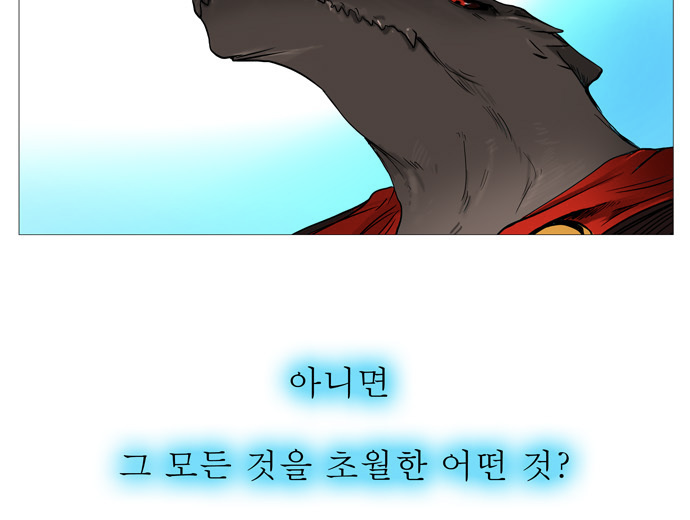
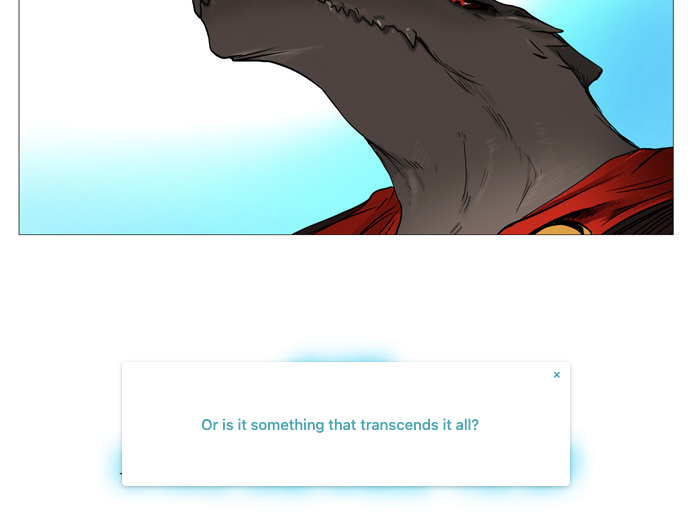
Naver Webtoon usually renders a whole episode as one tall image, rather than separate panels. Image Translate works on this just like any other image — right-click it and choose "Translate this image". The AI detects every speech bubble in the episode and overlays the translation on top of each one, in your chosen language.
Tip for very long episodes
Because a full episode can be a single very tall image, the browser downscales it before translating so it isn't impractically large to process. On unusually long episodes this can make the smallest text slightly harder to make out in the overlay — if that happens, zooming in with your browser (Ctrl/Cmd + "+") usually makes it easier to read.
Choosing your language
Open the Image Translate popup (click the extension icon) and pick your target language from the dropdown — it's remembered for every image you translate afterward, on Naver Webtoon or any other site.
Questions? Check the FAQ or install Image Translate to try it yourself.